Search Match Is Eating Your Budget: When to Turn It Off
By Sam H
You set up Apple Search Ads, picked a handful of keywords, and turned the campaign on. A week later you check the dashboard. Spend is up. Installs are up. Revenue is not. You scroll through the keyword report and half the terms do not look like anything you added.
That is usually Search Match. Apple turns it on by default. It expands your campaign beyond the keywords you chose, bidding on related searches Apple thinks might convert. Sometimes it finds winners. More often, for indie apps still learning, it burns budget on broad, irrelevant taps before you get a clean read on anything.
This post explains what Search Match actually does, when to keep it, and when to turn it off. If you are new to ASA entirely, start with Apple Search Ads for beginners. If your campaigns are running but the keyword list looks wrong, keep reading.
What Search Match actually is
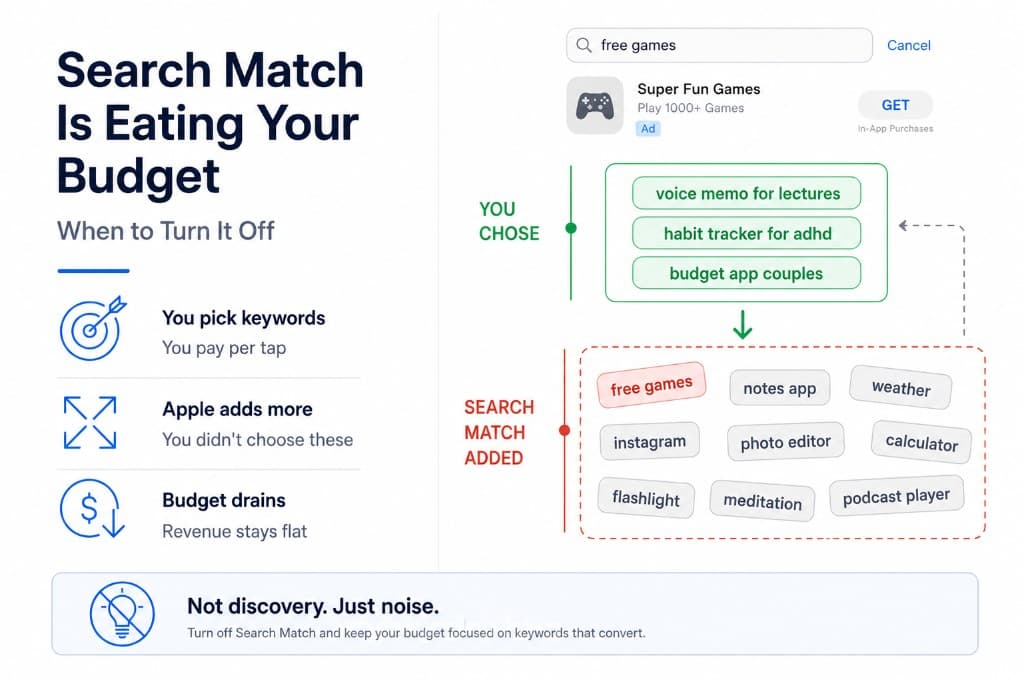
Search Match is an Apple Search Ads setting that lets Apple bid on search terms beyond the keywords you explicitly added to a campaign. You set a default max CPT bid at the ad group level. Apple uses your app metadata, category, and other signals to match your ad to searches it considers relevant. You still pay per tap. You just do not control which exact queries trigger the ad.
This is different from the keywords you add manually in an Exact or Broad match ad group. Those are terms you chose. Search Match is Apple guessing on your behalf. The guess is sometimes reasonable. It is also sometimes completely off for your app.
You will see Search Match activity in your search terms report even when your ad group looks clean. That is the point. Apple is testing queries against your max CPT bid without asking you first. If the bid is high enough and Apple thinks the app is relevant, the ad runs.
Why beginners leave it on
Three reasons, all understandable:
- It is on by default. Most first campaigns ship with Search Match enabled. You have to know to look for it.
- Apple frames it as discovery. The pitch is that Search Match finds keywords you would not have thought of. That can happen. It can also find keywords that share a category but not user intent.
- Install counts go up. Broad matching almost always increases tap volume. If you are watching installs and not revenue, it looks like progress.
I left Search Match on for my first few campaigns because the install line looked healthy. When I finally split spend by keyword, a chunk of the budget was going to searches that had nothing to do with what my app actually did. Cheap installs on the wrong intent still cost money.
When Search Match is worth keeping
Search Match is not always wrong. It can make sense when:
- You already have revenue tracking at the keyword level. You can see which auto-matched terms pay for themselves and cut the rest quickly.
- You are deliberately running a discovery phase. You have budget set aside to find new terms, separate from your core Exact match campaigns, and you plan to review search term reports weekly.
- Your app has a wide use case. A general productivity or utility app might genuinely match many queries. A niche B2B tool usually does not.
Even then, run Search Match in its own ad group with a daily cap you are willing to lose. Do not blend it with your brand defense or core category keywords in the same report without separating spend.
When to turn it off
Turn Search Match off if any of this sounds like you:
- First ASA campaign, learning budget under $500. You need clean signal on a small keyword list, not noise from fifty auto-matched terms.
- Your keyword report is full of terms you never added. If “free games” or generic category phrases appear for your paid subscription app, Search Match is doing its job poorly.
- Installs are up but revenue is flat. Broad matching often drives low-intent taps. CPI looks fine. ROAS does not.
- You cannot see revenue per keyword yet. Without keyword-level revenue data, Search Match is guessing and you are guessing back.
For most indie devs in their first month of ASA, the right default is Search Match off. Learn on Exact match with ten to twenty keywords you would actually want to rank for. Turn Search Match back on later, in a controlled ad group, once you know what a profitable keyword looks like.
Discovery campaigns at the account level are a separate conversation. Those cast an even wider net. If you are running both Search Match inside a Search Results campaign and a Discovery campaign at the same time, you are paying for two layers of guessing. Pick one learning path.
What to run instead
A tighter structure beats a wide net while you are learning:
- Brand ad group, Exact match only. Your app name and close variants. Defend your brand cheaply.
- Category ad group, Exact match, small list. Ten to fifteen long-tail terms that describe a specific use case. Not “notes app.” More like “voice memo for lectures.”
- Search Match off in both groups while you establish a baseline. Add a third discovery ad group later if you want to test auto-matching with a separate cap.
This mirrors the playbook in how long-tail keywords push your main keyword rank: start narrow, learn which terms convert, expand from data not from Apple's default settings.
Match type matters less than intent clarity. Exact match on a bad head term still wastes money. Exact match on five long-tail terms you understand gives you something to optimize.
How to tell if Search Match is the problem
Pull your keyword-level spend report after two weeks. Look for:
- Keywords you never added showing meaningful spend
- High tap volume with low tap-through rate on terms unrelated to your app
- A handful of terms driving most installs but zero trials or purchases
- Blended CPI that looks acceptable until you remove the auto-matched terms
The native ASA dashboard will show you spend and installs per search term. It will not show you revenue per term. That is where most devs stop investigating. If a Search Match term drives installs but no subscriptions, it is not a discovery win. It is a leak.
Connect revenue before you judge Search Match. AppSkale ties ASA spend to RevenueCat revenue at the keyword level so you can see which auto-matched terms actually pay, not just which ones look cheap.
A simple test: pause Search Match for two weeks in one ad group while keeping everything else the same. If spend drops but revenue per install rises, Search Match was diluting your results. If revenue drops proportionally with spend, some auto-matched terms were carrying the account and you can add them as Exact keywords manually.
Where to go next
Search Match is a tool, not a default strategy. Turn it off while you learn. Run Exact match on a small, intentional keyword list. Review weekly using revenue, not installs, as the filter.
For campaign setup, use the Apple Search Ads attribution setup guide. For deciding which keywords to keep once you have data, run a 30-day keyword audit. For the ROAS math behind the revenue check, see how to calculate Apple Search Ads ROAS with RevenueCat.
When you are ready to see which keywords fund your account and which ones Search Match quietly drains, AppSkale puts spend and subscription revenue on the same row.