How to Read the Apple Search Ads Search Terms Report
By Sam H
The keyword report tells you what you meant to buy. The search terms report tells you what Apple actually showed you for. Those are not the same thing, especially once Broad match or Search Match is involved.
Beginners live in the keyword tab, sort by CPI, and make decisions from averages. Then they wonder why a “good” keyword still feels random. The randomness is usually visible one click deeper: in the search terms that triggered the ad.
This post is a practical read of the Apple Search Ads search terms report: what each row means, what to promote, what to negative, and what to ignore until you have more data.
Keywords vs search terms
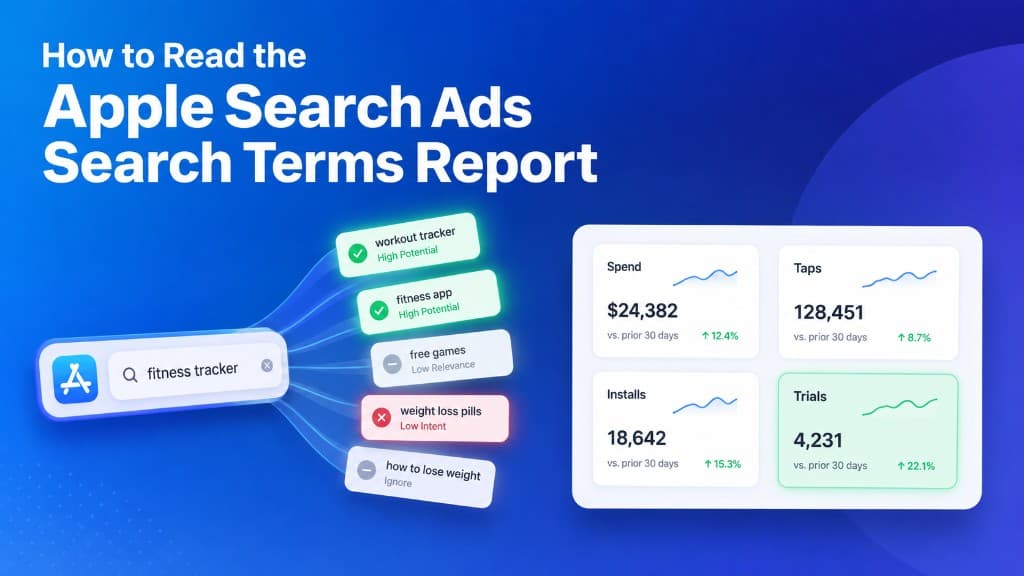
A keyword is the term you added to an ad group with a match type. A search term is the actual App Store query that matched and spent.
On Exact match, those are usually close. On Broad match or Search Match, one keyword can spawn a long list of related queries. That is why Exact learning stays readable and Broad without harvest becomes fog. See Exact vs Broad match and Search Match is eating your budget.
If you only manage keywords, you manage intent at the wrong resolution.
What to look at first
Open search terms for the last seven days. Sort by spend. Ignore the vanity of tiny rows until the big spenders are handled.
- Spend — which queries actually taxed the budget
- Taps and installs — whether the query got engagement
- Trial starts or revenue — if you can see them. This is the real keep/pause signal for subscription apps
- Match source — Exact keyword, Broad expansion, or Search Match noise
CPT and CPI still help as diagnostics. They are not the decision. See CPT vs CPI. A cheap search term with no trials is not a win.
The four buckets every row falls into
When you scan a search term, put it in one bucket:
- Promote to Exact. The query converts, or clearly starts trials, and you want to bid on it deliberately. Add it as an Exact keyword in the right ad group.
- Negative. Wrong platform, wrong audience, free-only hunters, jobs, or any theme that repeatedly spends with no path to revenue. Details in negative keywords.
- Watch. Some spend, unclear outcome, still inside your trial lag. Do not crown it or kill it after two taps.
- Ignore for now. Tiny spend, no pattern. Come back next week if it grows.
Most beginner accounts fail by doing the opposite: ignoring big waste and overreacting to tiny rows.
How to read Exact vs Broad rows
Exact ad groups: search terms should mostly look like the keywords you chose, plus close variants. If Exact is somehow producing weird queries, check whether Search Match is on or whether you mixed match types in the ad group.
Broad or discovery ad groups: the search terms report is the product. The seed keyword is just the door. Harvest winners into Exact. Negative losers. Leave the middle alone until there is enough spend to judge.
Do not leave a converting Broad query buried forever. If “habit tracker for ADHD” is the term that pays, that phrase should become an Exact keyword with its own bid and reporting line.
A weekly search terms routine
Fifteen to twenty minutes is enough for most indie budgets.
- Filter to the last 7 days. One storefront if you can.
- Sort by spend. Work top-down.
- Promote clear winners to Exact brand or category ad groups.
- Negative clear mismatches and repeated non-converting themes.
- Note anything expensive with installs but no trials. That may be bad intent or a funnel leak. See your ASA CPI looks great, your paywall conversion is terrible.
- Stop. Do not rebuild the whole account every week.
If your list is too long to review, the problem started earlier. Keep active keywords short enough that search terms stay reviewable. See how many keywords you should run.
Common misreads
- Judging a Broad keyword by its average CPI. The average can hide one good query and five bad ones.
- Negativing after one or two taps. Need a pattern, or an obvious intent mismatch.
- Never checking brand search terms. Useful for catching misspellings worth adding, or junk variants worth blocking.
- Treating rival brand queries as category wins. Those belong in a separate conquest test, if at all. See competitor keywords.
- Optimizing search terms on installs only. For subscription apps, installs without trials are incomplete evidence.
What “good” looks like after a month
A healthy account does not have a perfect search terms report. It has a visible loop:
- Exact brand and long-tail category terms produce mostly expected queries
- Discovery, if used, feeds new Exact winners every week or two
- Negatives grow as themes, not as panic one-offs
- Spend concentrates on terms that create trials or revenue
If search terms stay chaotic after a month, check structure first: Search Match on, Broad mixed into Exact, too many keywords, or a daily budget too thin to generate clean samples. See Apple Search Ads daily budget and where your first $500 should go.
The native report shows which queries spent. It does not cleanly show which of those queries became subscribers. AppSkale puts ASA spend next to RevenueCat revenue so search-term decisions can follow paying users, not just taps.
Where to go next
Read the search terms report top-down by spend. Promote winners to Exact. Negative clear waste. Watch the middle. Ignore the noise until it earns attention. That weekly loop is how small Apple Search Ads accounts stay legible.
For match-type setup, use Exact vs Broad match. For cleanup, use negative keywords. For attribution before you scale harvest decisions, follow the Apple Search Ads attribution setup guide. For ROAS once conversions land, read how to calculate Apple Search Ads ROAS with RevenueCat.
When you want search-term-level spend tied to subscription outcomes, AppSkale connects Apple Search Ads to RevenueCat so the report becomes a revenue tool, not just a query list.